ManualThe app at a glance
The app at a glance
One app for Android and iOS with two faces: the marketplace for guests and the console for the restaurant. Both share the account, the language, the appearance and the notifications.
One app, two faces
There is one installation, not two. Somebody who runs a restaurant and orders dinner themselves in the evening still has one icon on their home screen. Which face the app shows depends on whether the signed-in account belongs to a restaurant, and on which side was open last.
The guest side is light and airy and we call it the marketplace. The restaurant side is a console: a dark bar at the top in both brightnesses, numbers rather than a menu, everything within thumb's reach. The brand colour is the same on both.
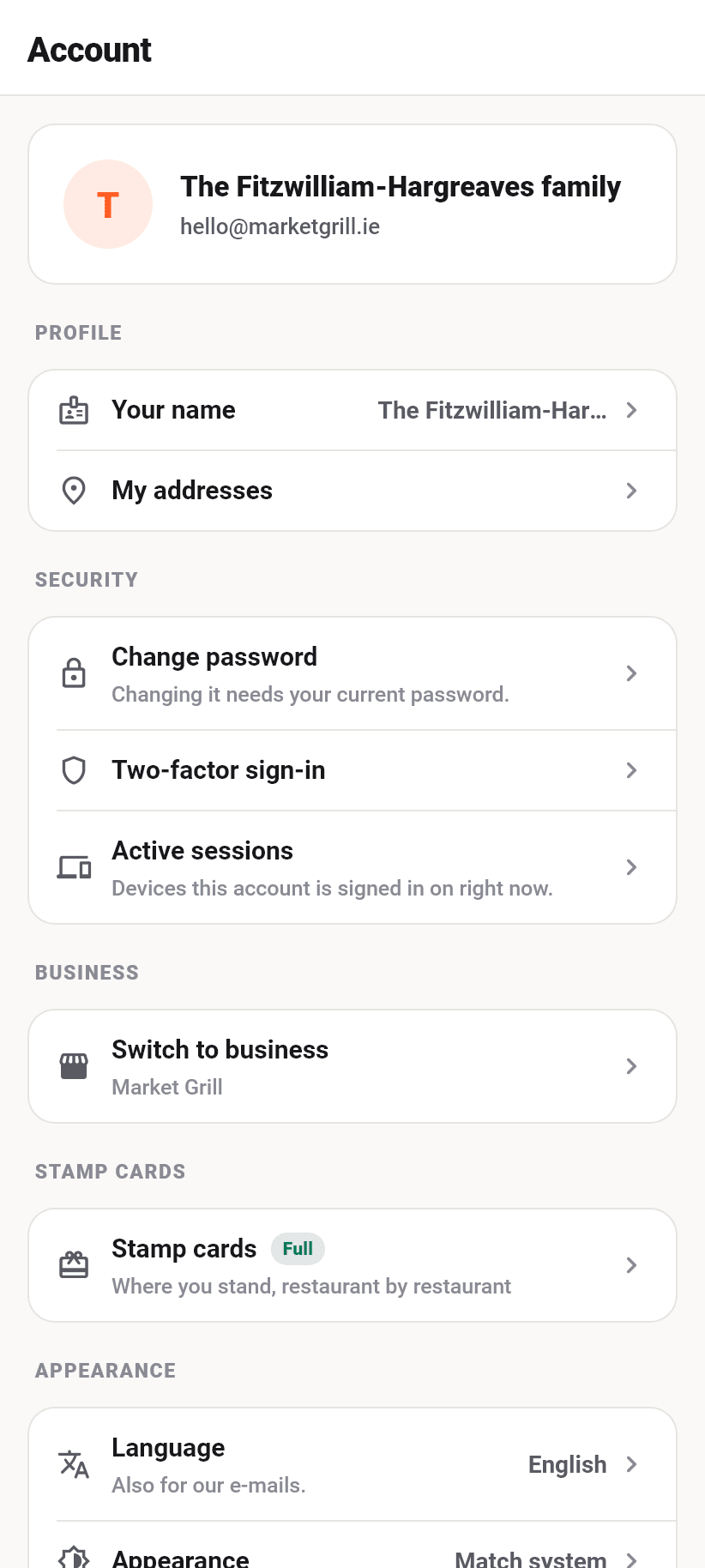
The way over and back is always there and always in the same place. From the guest view: tab Account, section “Restaurant”, “Switch to your restaurant”, with the name of your restaurant underneath it. From the restaurant: tab More, section Account, “Switch to marketplace”. It is one application with two views, not the same account twice.
Your own ordering page can be looked at from the inside too, without leaving the app. The console opens exactly the screen a guest lands on, and wears the light guest look for the length of the preview.
Installing
The app is on Google Play for Android and in the App Store for the iPhone. The download button sits on the front page of flavoso.com, in the dashboard under “More” and on every ordering page; searching the store for “Flavoso” finds it just as well.
It is free, and it costs nothing extra either: what the app can do depends on your restaurant's plan and not on where you opened it. A guest needs no plan at all, for them the marketplace is the whole offer.
Ordering works without installing anything. The ordering page runs in the browser of every phone, and for a guest ordering from you once, the QR code on the table is the shorter way than a trip to the store. The app pays off for the regular: favourites, stamp cards, order history and notifications on where the order is.
The same applies to the restaurant, the other way round: the dashboard and the kitchen screen still run in the browser, see “On a computer” further down. The app is the part that fits in an apron pocket.
One account for everything
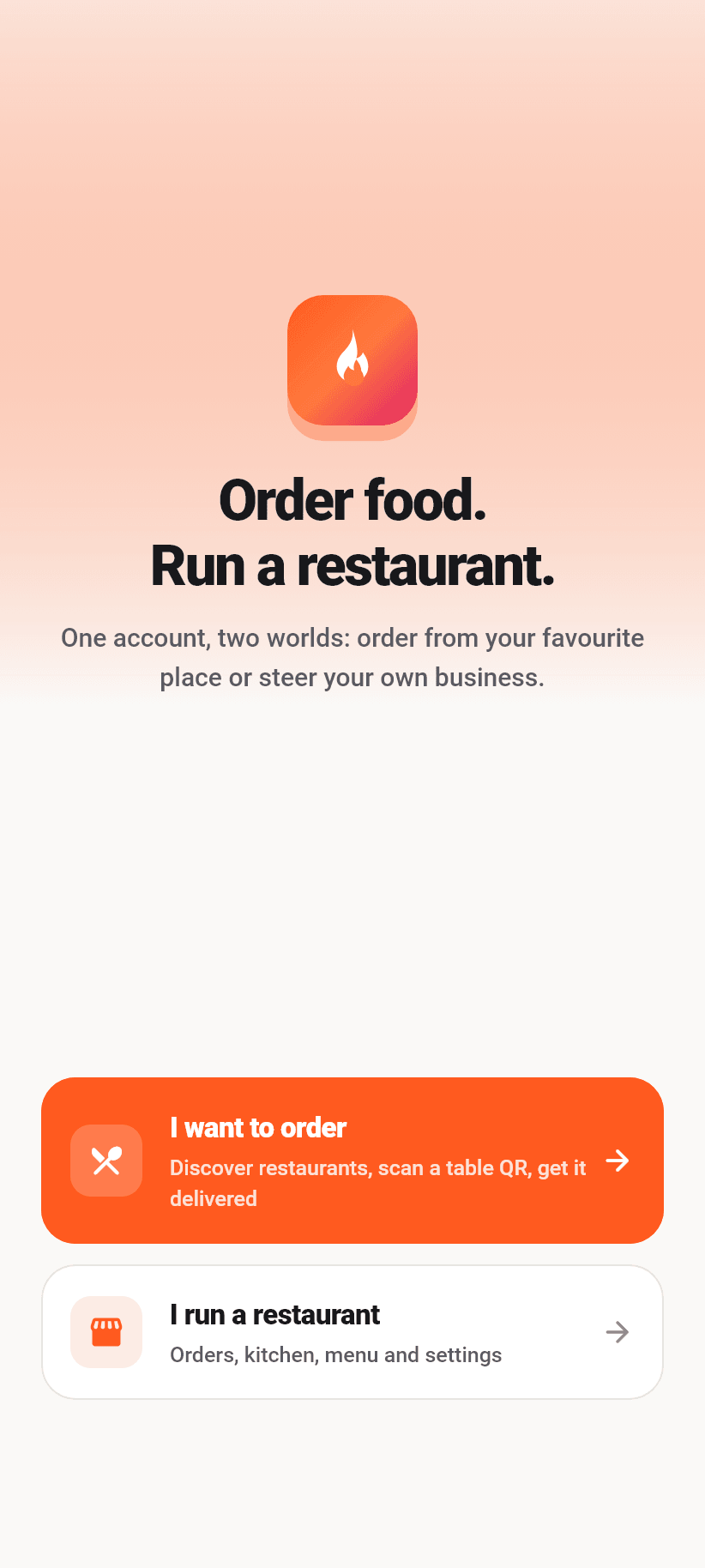
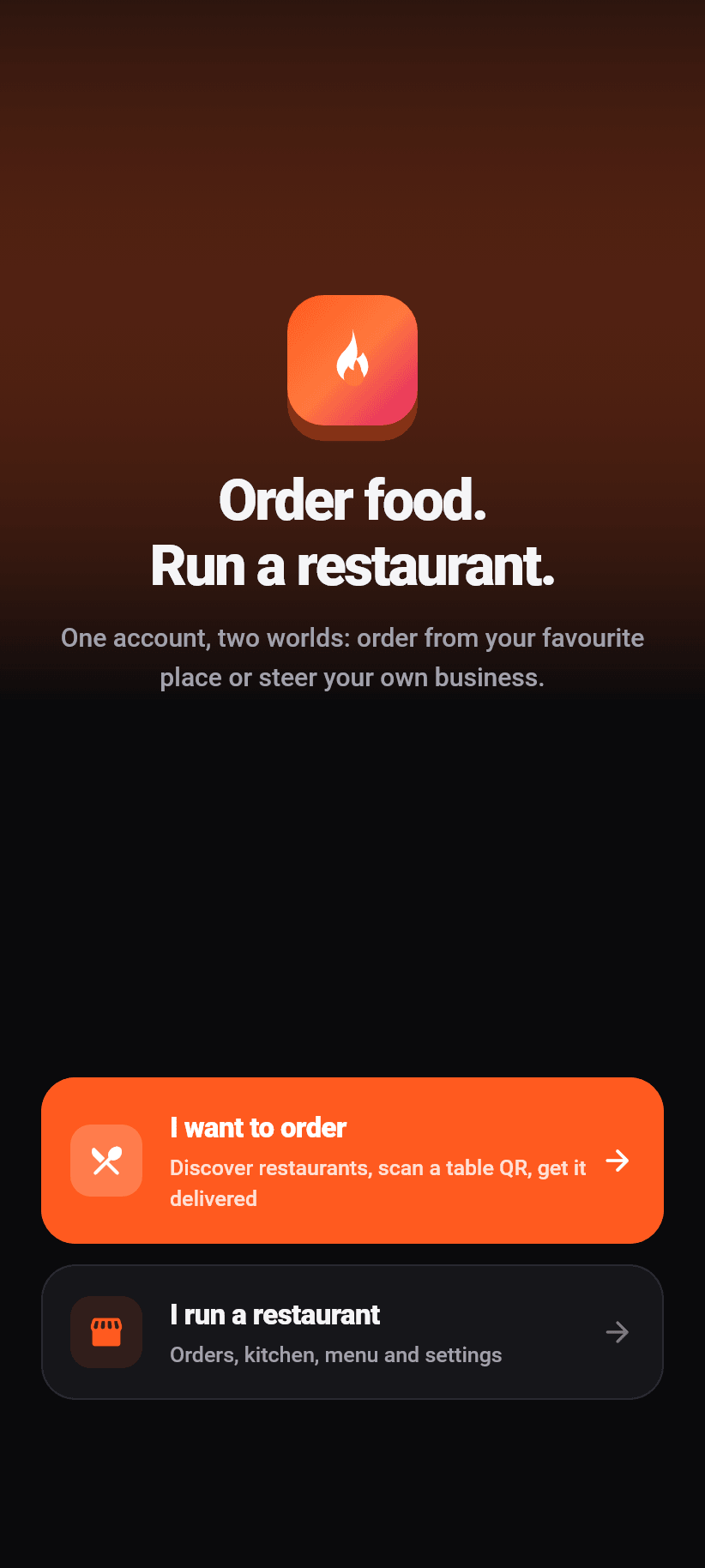
The first screen has two doors: “I want to order” and “I run a restaurant”. Both end at the same account. The door only sets the expectation and decides where you land; there is no separate restaurant login, and it would not be one either, it would be a claim the first password reset exposes.
Without an account you can do more than you would think: browse, read a menu, fill a basket and order. So “carry on without an account” sits on the sign-in screen itself, as a full-width button, and not as small print in a corner. On the restaurant side it is not offered, because a console with no account behind it has nothing to show.
CREATING a restaurant happens on the web, not in the app. There the setup asks for the address, the legal form and the ordering channels, so for considerably more than an account needs. After that you sign in here with exactly that account and the restaurant is there.
Forgotten password sends a link to the address on file. It leads back into the app and to a single screen: set a new password. Only then does it go on.
- 1
Open the app and pick a door
“I run a restaurant” leads into the console, “I want to order” into the marketplace. You can switch later at any time without signing in again.
First start
- 2
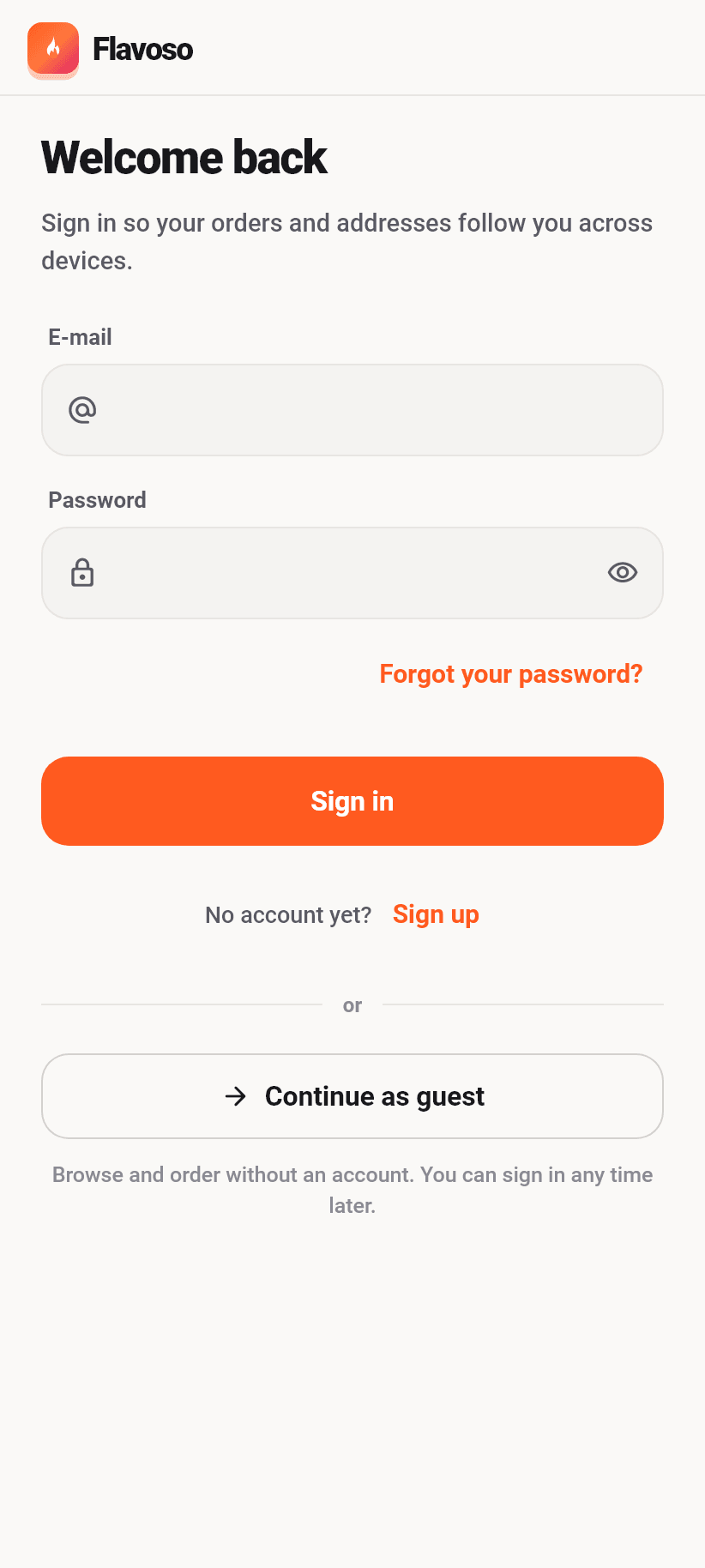
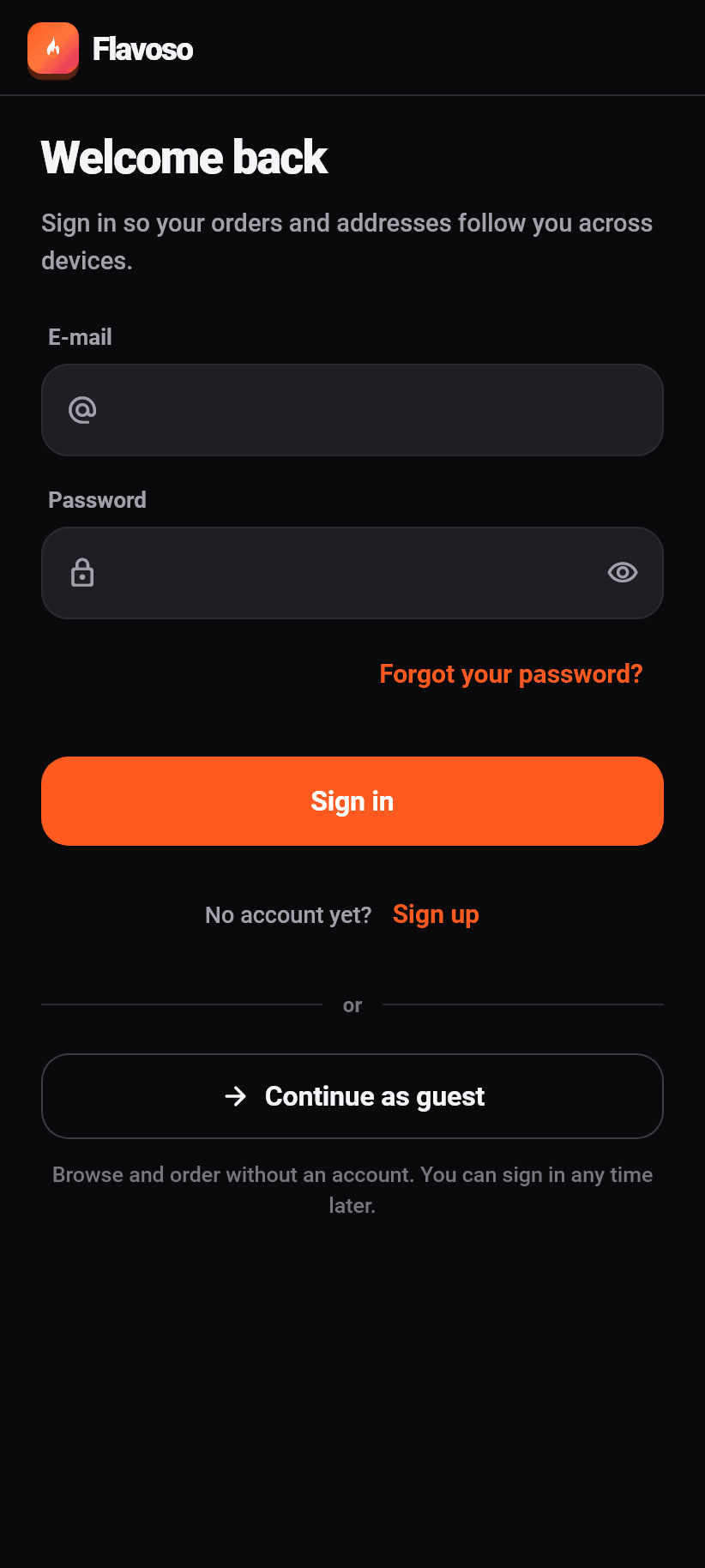
Enter e-mail and password
The same credentials as in the dashboard. No account yet? Carry on beside the question “No account yet?” to register.
Sign in
- 3
Or carry on as a guest
The full-width button under the form. Browsing, ordering and paying all work with it; only favourites, stamp cards and the order history need an account. On the restaurant side it is not offered.
Sign in, at the bottom
- 4
Second factor, if set up
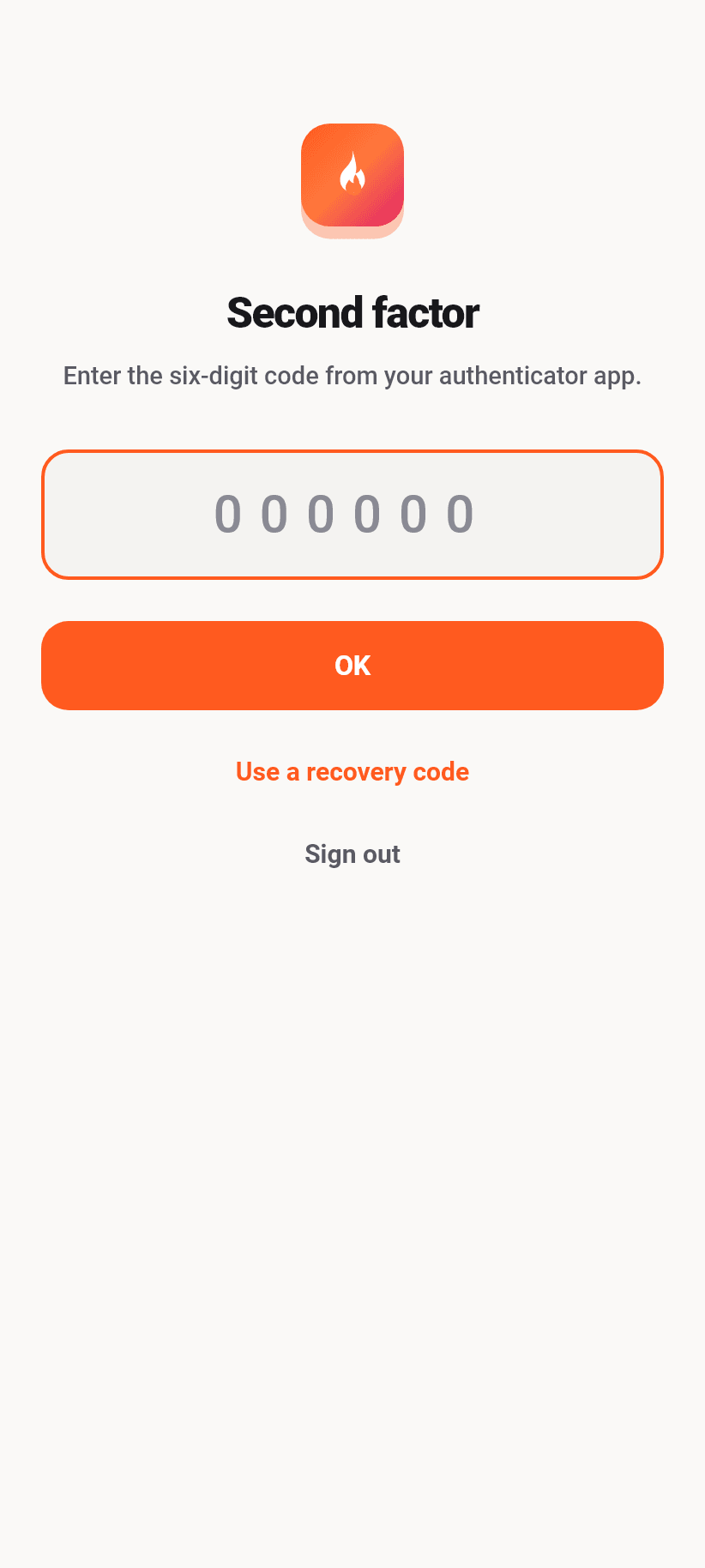
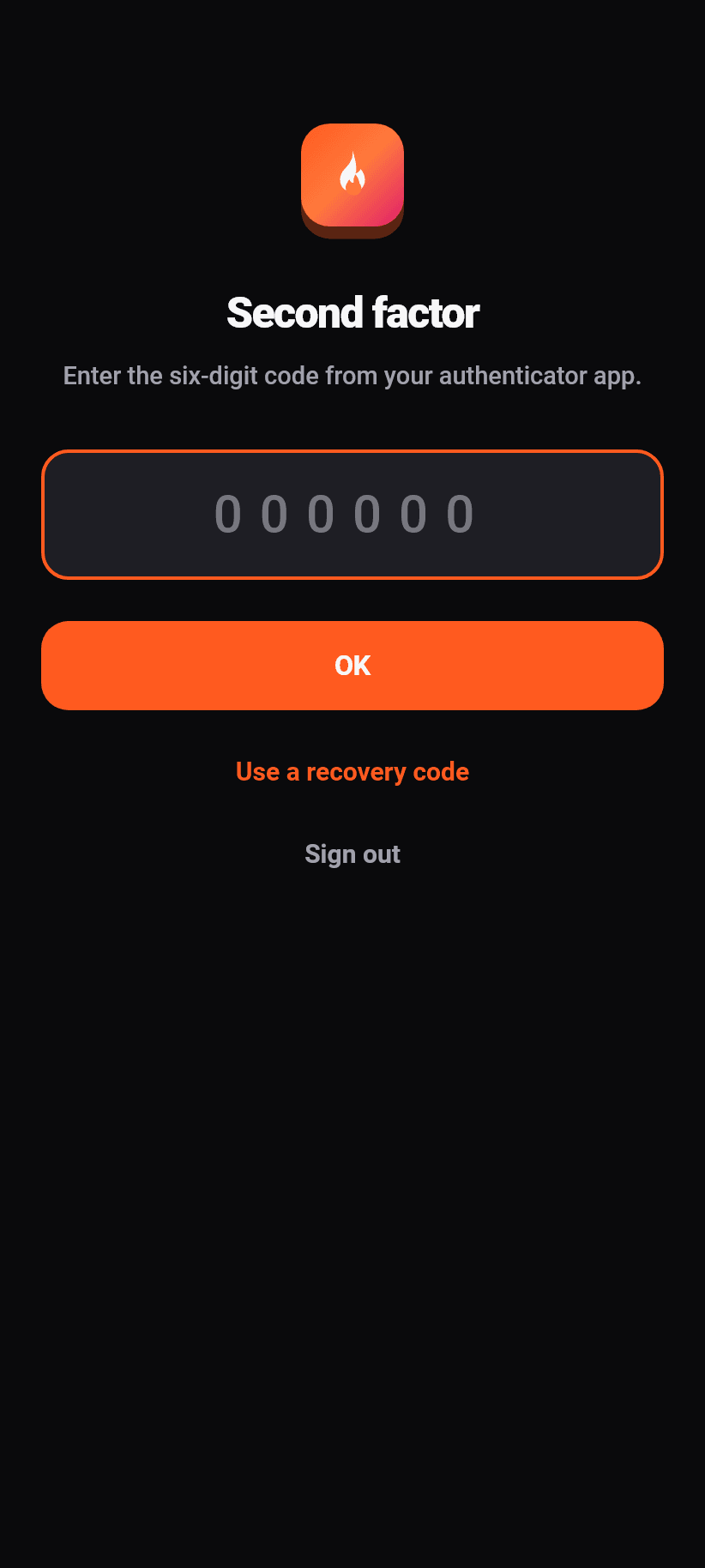
Six digits from your authenticator app. There is no skipping; anybody who lost their phone uses one of the eight recovery codes.
Right after signing in
- 5
Forgotten password
“Forgot your password?” above the sign-in button sends a link to the address on file. It leads back into the app, to a single screen: set a new password.
Sign in
Password, second factor and sessions
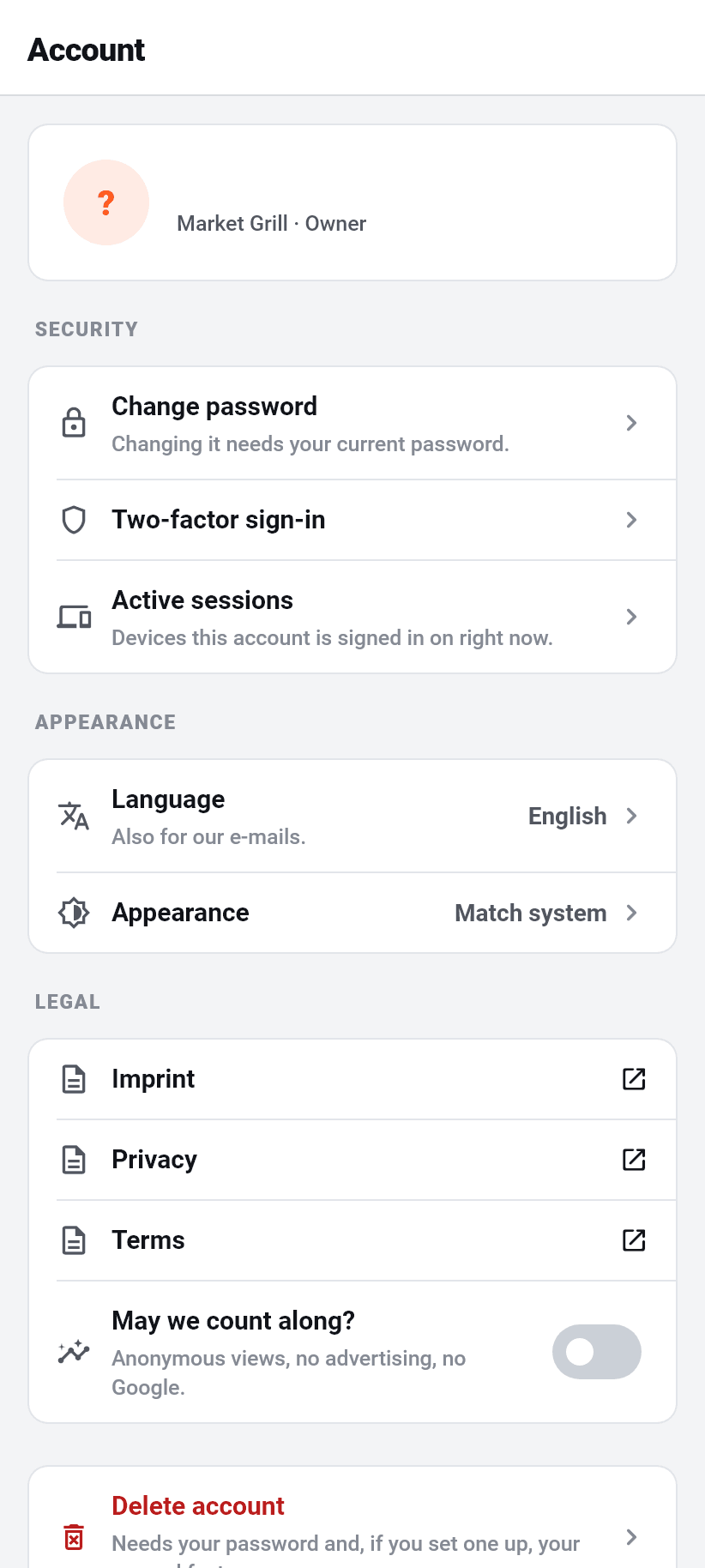
Account security sits in the same place in the app as on the web and asks for the same proof. Changing your password needs your current one; afterwards only this device stays signed in, and the app says so beforehand.
You set up two-factor authentication here: scan the QR code with an authenticator app or type the key in by hand, then enter the six digits. After that the app shows eight recovery codes, exactly once. Each one works once and switches the second factor off. Anybody who loses their phone without one of them does not get back into their account.
If a second factor is set up, the app asks for it right after signing in and allows nothing else. That is not strictness for its own sake: the API refuses every request without that proof anyway, and an interface that opens regardless would be a screen where nothing loads. There is no skipping, there is a recovery code.
Under “Active sessions” are the devices this account is currently signed in on, with when they were last seen. You can end one, or sign out all the others at once.
Deleting the account works in the app, with the password, the second factor and a typed word. The app says beforehand what happens to the restaurants you are the only owner of: they go with it, menu, order history and ordering page included. Restaurants with a second owner stay.
What each person gets to see
The app does not show everybody the same thing. What somebody sees depends on their role and on the ten areas assigned to them in the team: orders, kitchen display, deliveries, reservations, menu, tables and QR, numbers and visitors, settings, managing the team, subscription and billing.
An area without permission is not a greyed-out button, it is not there at all. A driver gets their deliveries, the kitchen gets orders and the kitchen display. That is not cosmetic: the API would refuse the request anyway, and a tab that answers “you do not have permission for that” is a dead end with pretensions.
Anybody working in two restaurants switches at the top in the header or under More, section Account. The header carries the name of the current restaurant on EVERY screen, with a dot in front of it: green means orders are being accepted, amber means paused. It is there and not only on the overview, because otherwise exactly the wrong menu gets edited.
If a subscription has lapsed or a restaurant has been suspended, the notice is on every screen of the console and not only on the overview. Somebody who lands on the orders and sees nothing coming in needs the reason where they are looking.
Language and appearance
The app speaks the same five languages as the website: German, English, French, Spanish and Italian. The phone's language is the default; if it matches none of them, it is German. Switching happens in the account, and the setting also applies to our e-mails to you.
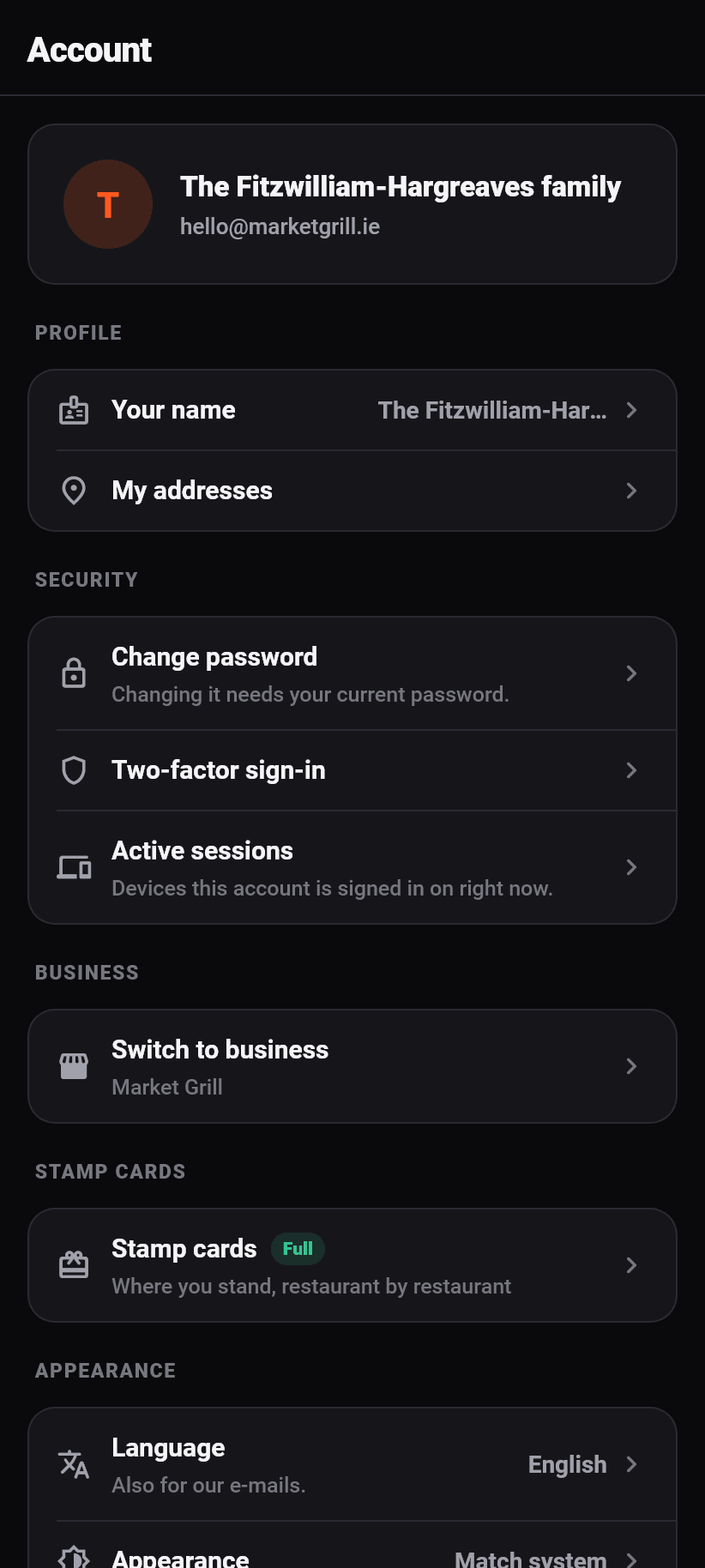
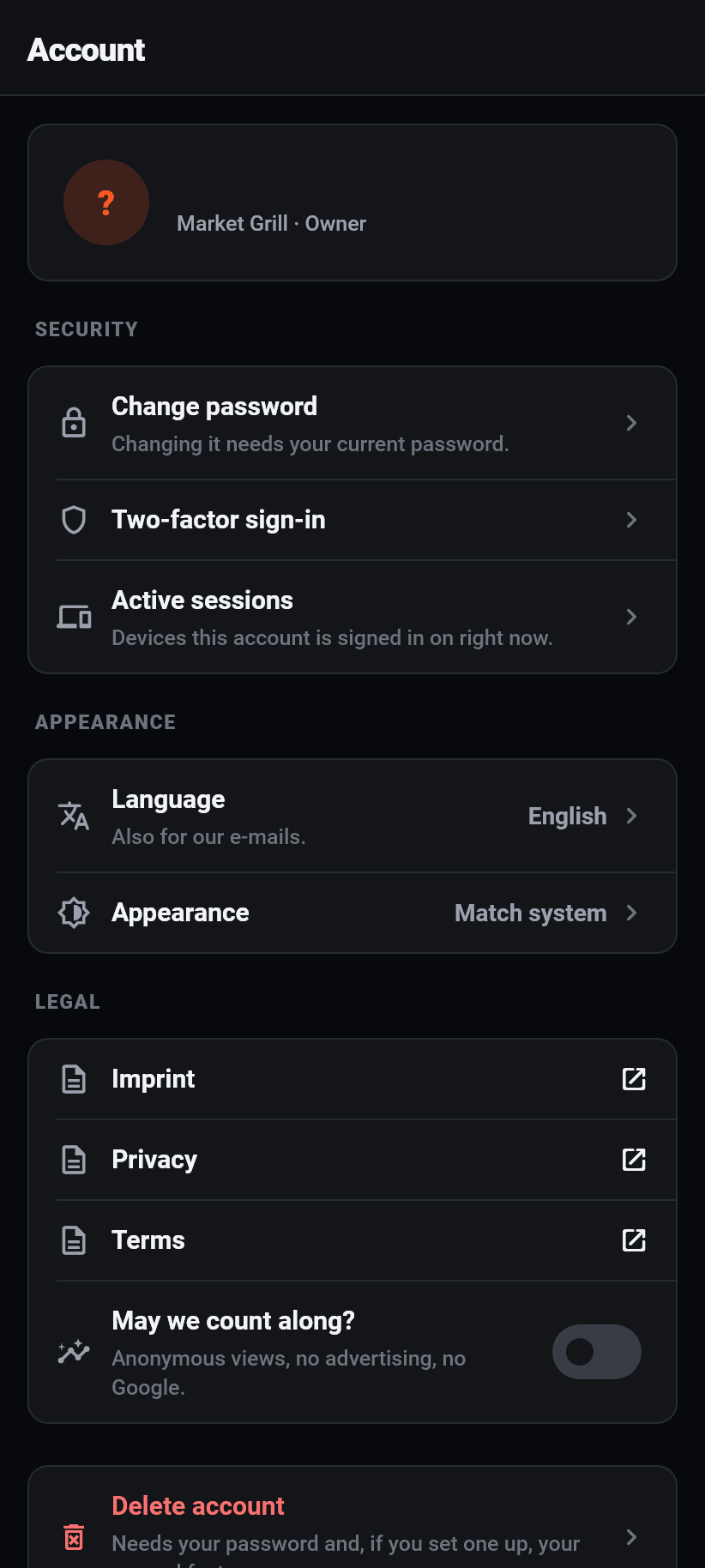
The appearance has three settings: like the system, light, dark. A tablet in a dark kitchen and a phone at lunchtime want opposite things, and neither wants to be asked. So the default follows the device, and the choice exists for the cases where the device is set to something that does not fit here.
What is translated is the interface, not your content. Your menu stays in the language you wrote it in, and that is right. How to get it into more languages is in the chapter “The menu”.
What refreshes itself
The console asks again every fifteen seconds, but only for the tab currently on screen, and only while the app is in front. Put it away and it costs nothing; bring it back and you get the current state at once rather than waiting out the rest of the quarter minute.
The refresh is silent: the old list stays until the new one is there. An order list that briefly falls back to placeholders under somebody's thumb is the most reliable way to accept the wrong order.
The kitchen board keeps its last good state when the network drops, and writes a line above it saying that it is the last one. A kitchen display that empties itself because the wifi blinked is worse than one showing tickets from a minute ago.
On the guest side the tracking of a running order refreshes at the same rate and stops as soon as the order is completed or cancelled. Everywhere else: pull the list down to refresh.
Deliberately no permanently open line to the server. That would be a websocket held open for a whole shift on a phone in an apron pocket, with its own authorisation and an answer for every lift and every tunnel. Four small requests a minute are cheaper, and they stop by themselves as soon as the app goes into the background.
Notifications on the phone
A new order reports itself on the phone, even with the app closed. On first start the device asks once whether it may do that; anybody who declines can allow it later in the phone's settings, and the app says where the switches are that the permission is missing.
Two questions, two places, and they are easily confused. What arrives on YOUR phone is up to you, under More, Account, Notifications. What the GUEST gets is up to the restaurant, under Settings, Notifications. One hangs off the account, the other off the restaurant.
Which rows appear under “Notifications” depends on your areas: a driver sees two, an owner seven. The list arrives ready-made from the server, labels included, in the language of your account, so that there are not two truths about what can be reported.
A notification goes to every device this account is signed in on, and it carries the restaurant in its text: somebody working in two restaurants can see on the lock screen which one is meant. Tapping it opens not the home screen but exactly the order in question.
As long as no device is registered on the account, the screen says exactly that instead of showing switches with nothing behind them.
Widget and shortcuts
There is a home-screen widget, on Android as well as on the iPhone. It sits wherever the phone offers its widgets, under the name Flavoso, and it comes in two sizes.
What it says depends on who is signed in: a restaurant sees its open orders and today's takings, a guest with a running order sees where it is, and signed out it shows nothing but the note to sign in. So a phone that has been handed on does not show the previous owner's revenue.
⚠️ Beside the number there is always when it was true: “as of 14:07”. A widget does not run inside our app, it reads what the app last wrote down and fetches nothing itself. It does not do that out of convenience: it would need your account's key in a store other things on the device can read too, and a revenue figure is not worth that. An old number with a time on it is information; an old number without one is a trap.
Long-pressing the app icon opens four shortcuts. In the restaurant those are orders, kitchen, tables and the QR scanner; as a guest scan, orders, favourites and discover. The list follows the signed-in account, so that “Kitchen” does not sit under the icon of a phone with no restaurant on it.
What the app keeps on the device
The sign-in lives in the phone's protected key store, not in an ordinary file. Neither a backup nor another app can get at it.
A basket survives six hours. That is enough for a phone call, a look at the messages app and Android reclaiming the memory; it is short enough that nobody is greeted the next day with yesterday's prices.
Favourites need no account: the device remembers them. Sign in later and both lists are merged, never replaced.
⚠️ Orders without an account live on this device only. Nothing about a guest order points at a person, so nobody else can find it again either. Changing phones does not take them along, and the app says so where they are listed.
Counting happens only with consent, and without it not at all, not even anonymously. The switch for it sits in the account and asks the same question as the banner on the website, word for word.
On a computer
On a computer there is no separate application, and none is planned. The dashboard and the kitchen screen run in the browser and install as an app from there, on Windows, macOS and Linux alike. There is no installer.
Installed means: its own window without an address bar, its own icon, its own entry in the start menu. It is the same application.
Still unclear? Ask the assistant at the bottom right or write to us